
Manual pose control
Drag the body handles to adjust the head, torso and limbs. Connected body parts follow the movement as you shape the pose.
Pose first. Create next.
Arrange people, animals and props in a 3D scene. Apply pose presets, adjust joints and frame the camera, then use your scene as a reference for AI image generation.
From pose to image
A pose reference gives the image model visual direction for the body and framing. Your prompt supplies the character, setting, and style.
Add your characters and props, then apply a pose preset. Refine the body controls and adjust the camera until the scene reads clearly.
3D pose editorSelect Pose to Image to capture the visible scene without the editing handles. The capture is attached as a reference in the image workspace.
Scene → reference imageAdd your subject, clothing, environment, and lighting to the prompt. Check the displayed credit cost, sign in, and generate an image. Review the result and adjust as needed.
Reference + prompt → imageOriginal examples
Compare a posed scene with its generated image. Explore how camera angle, body position and framing shape the result.
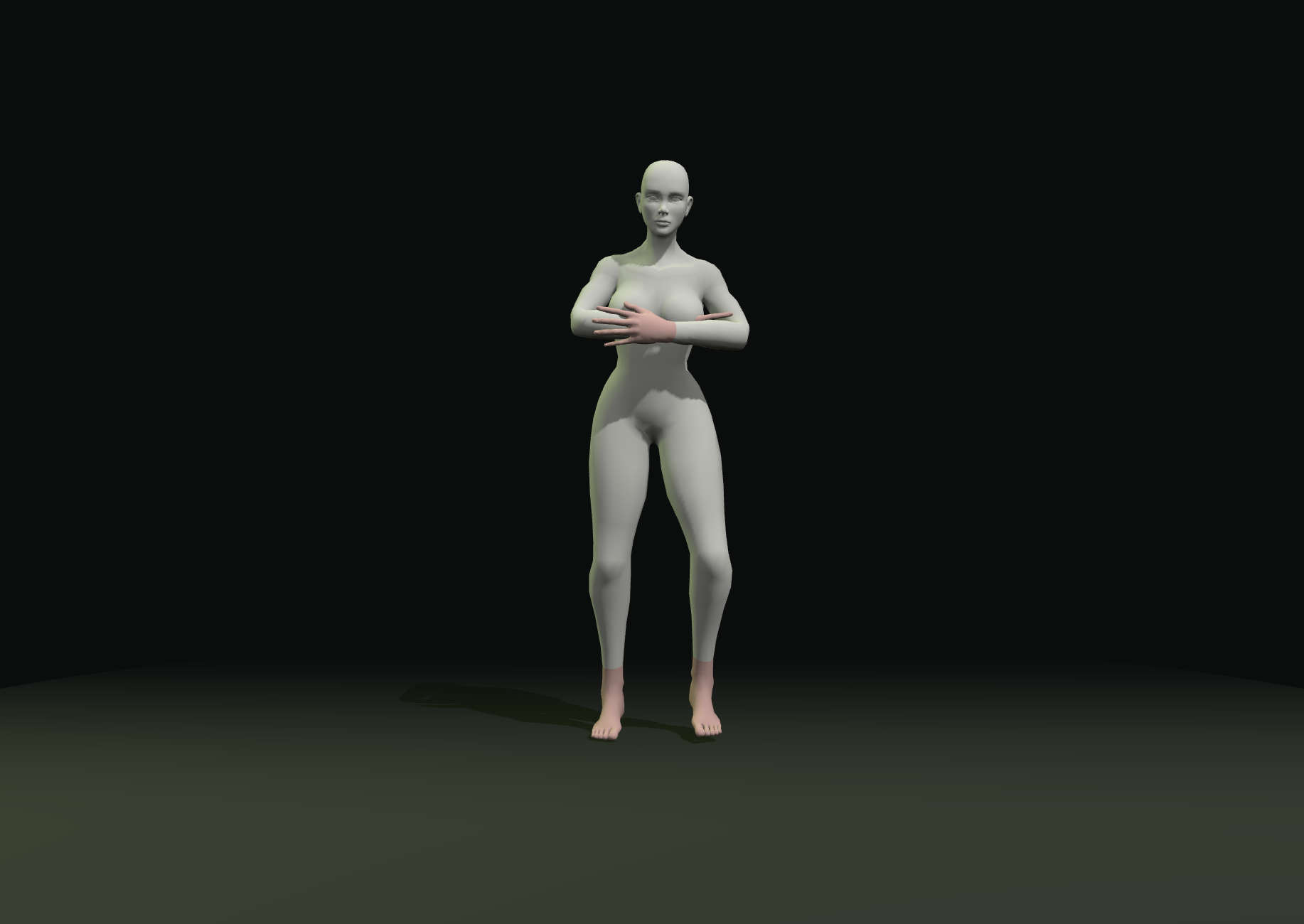
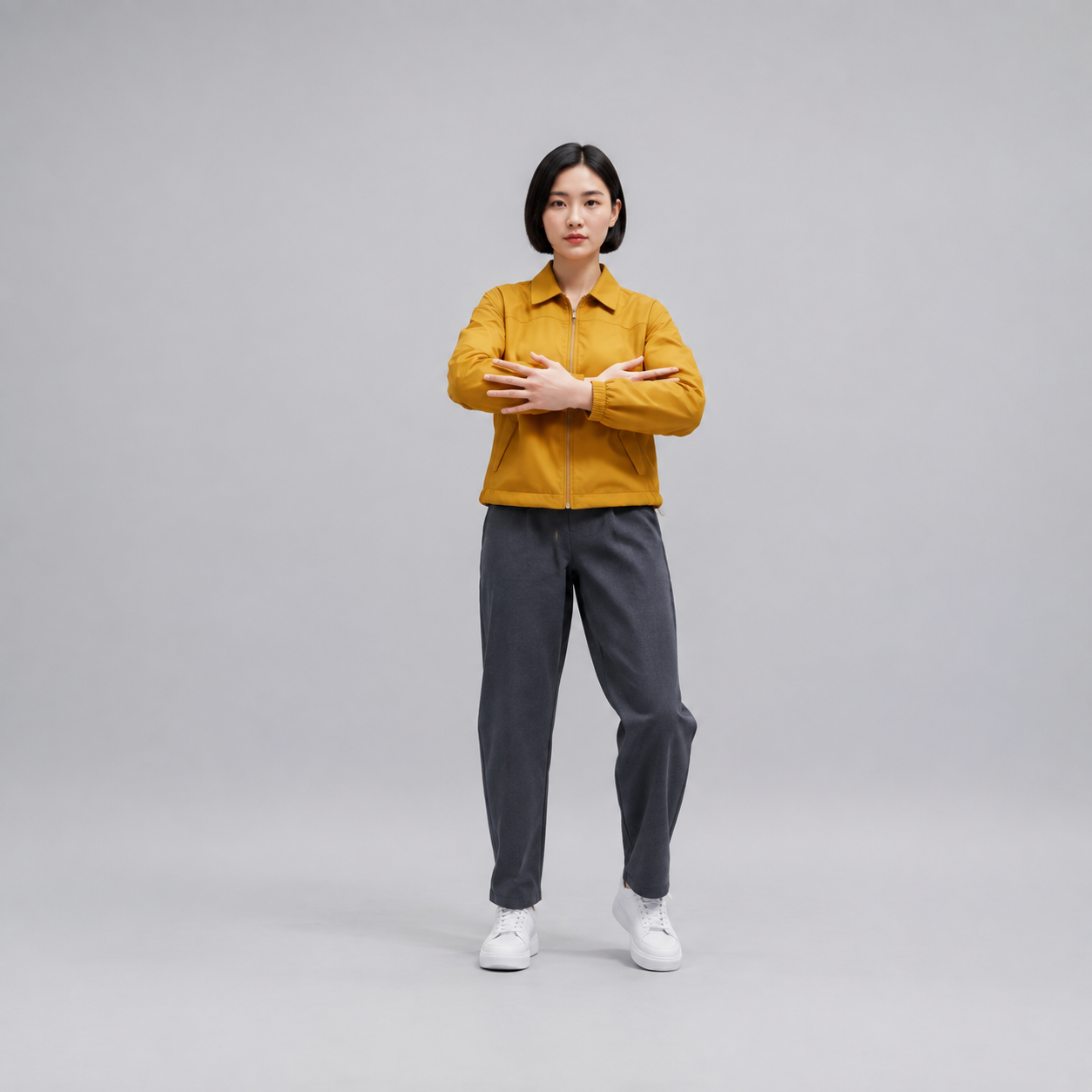
Compare the front and low camera views
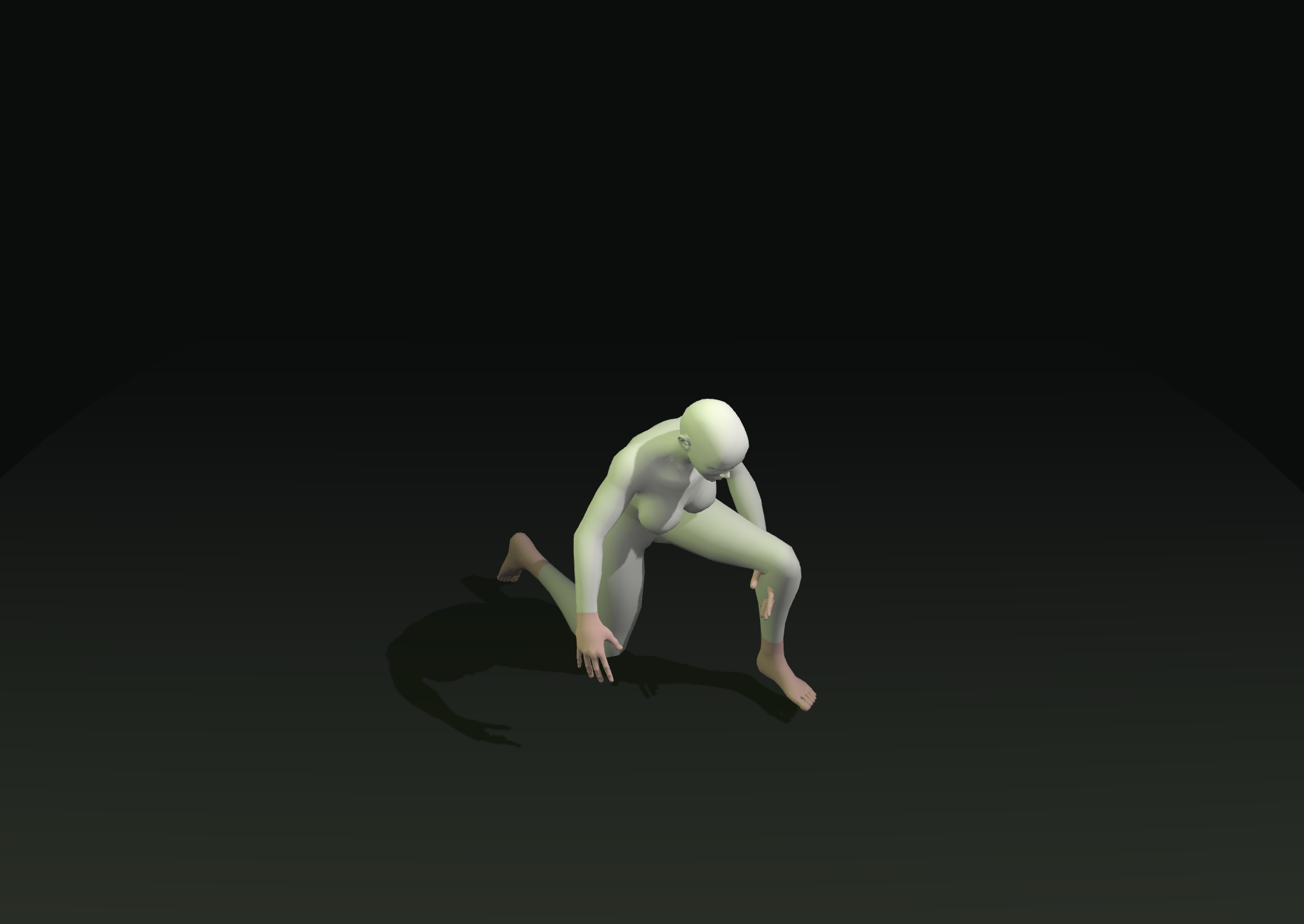
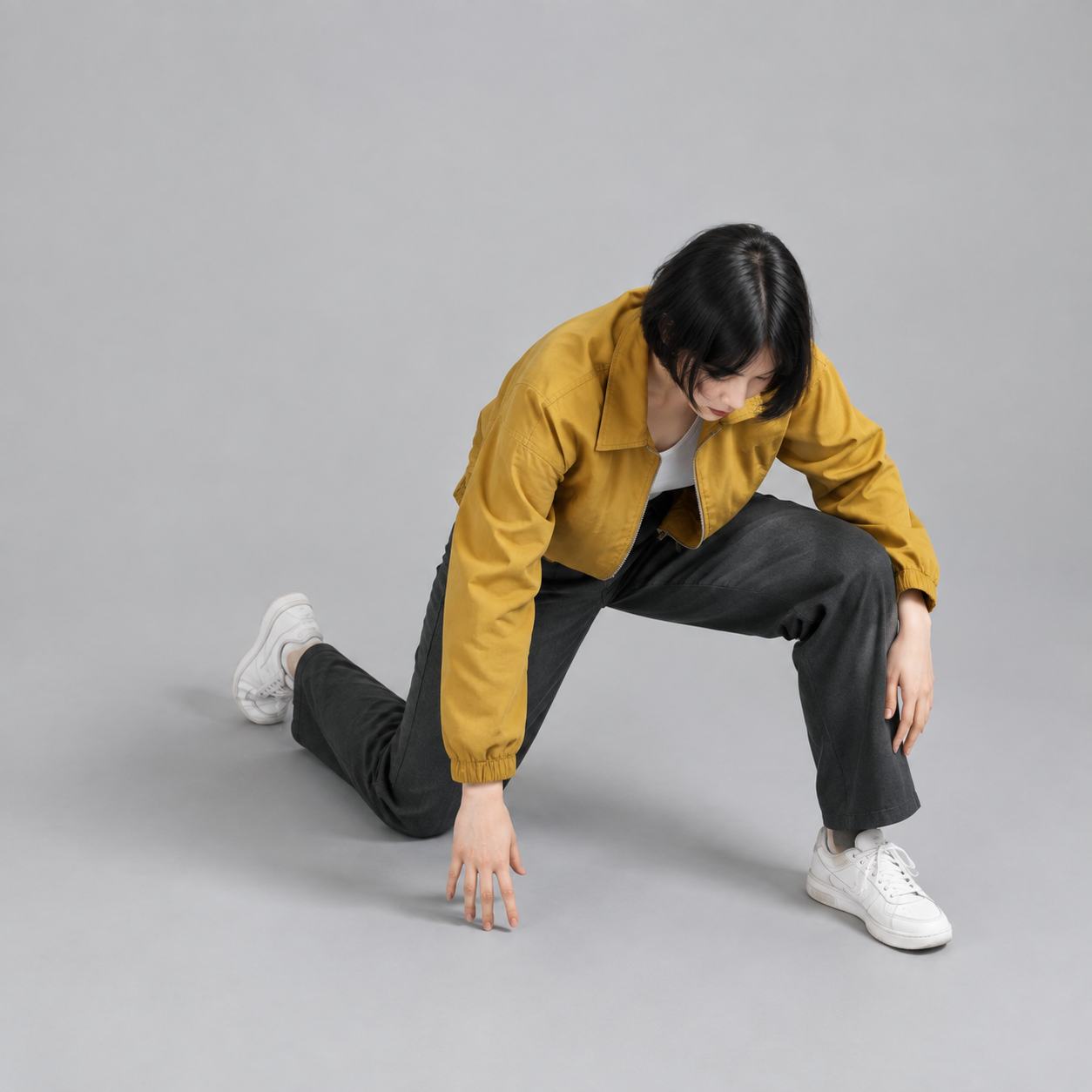
Compare the oblique and high camera views
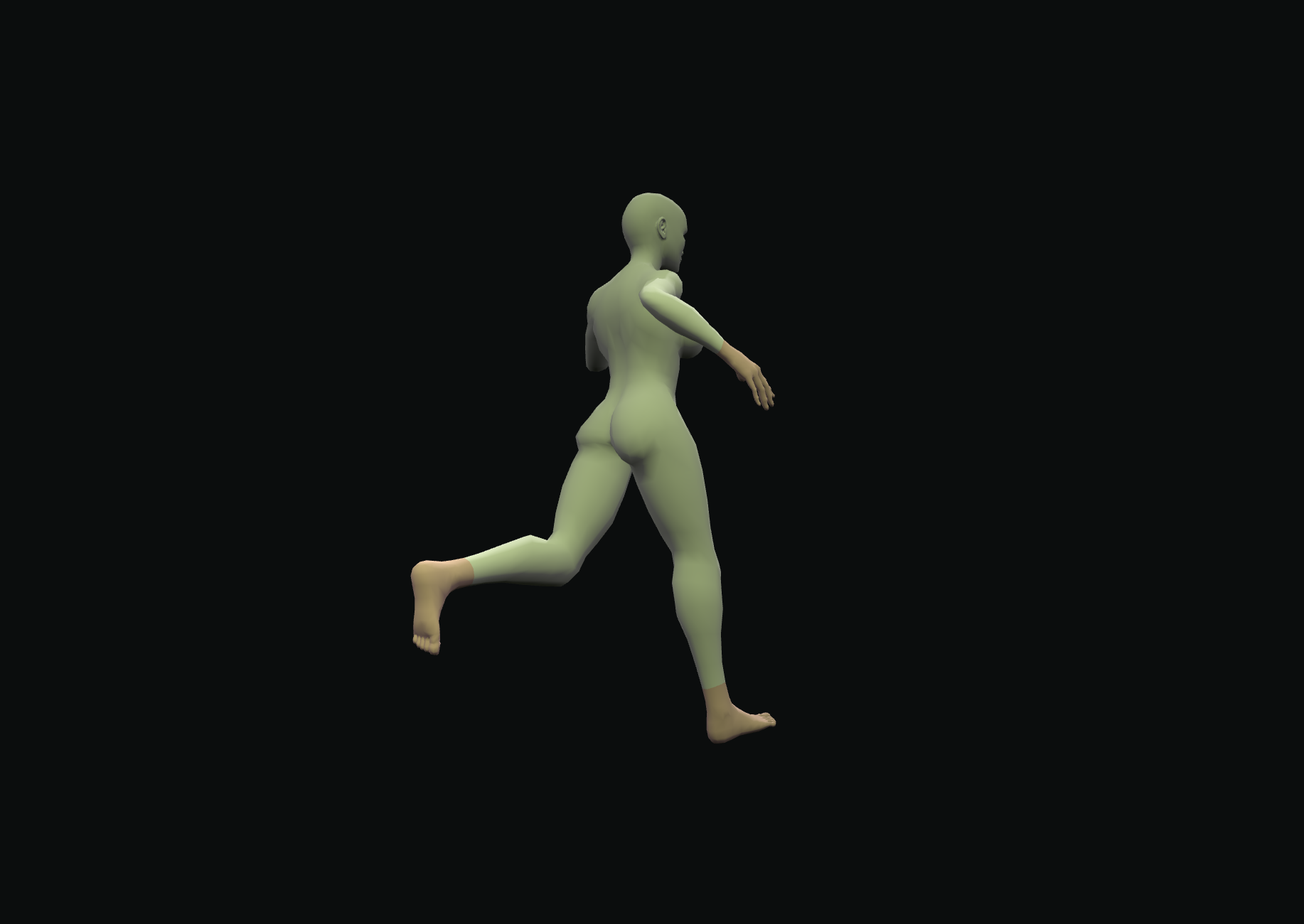
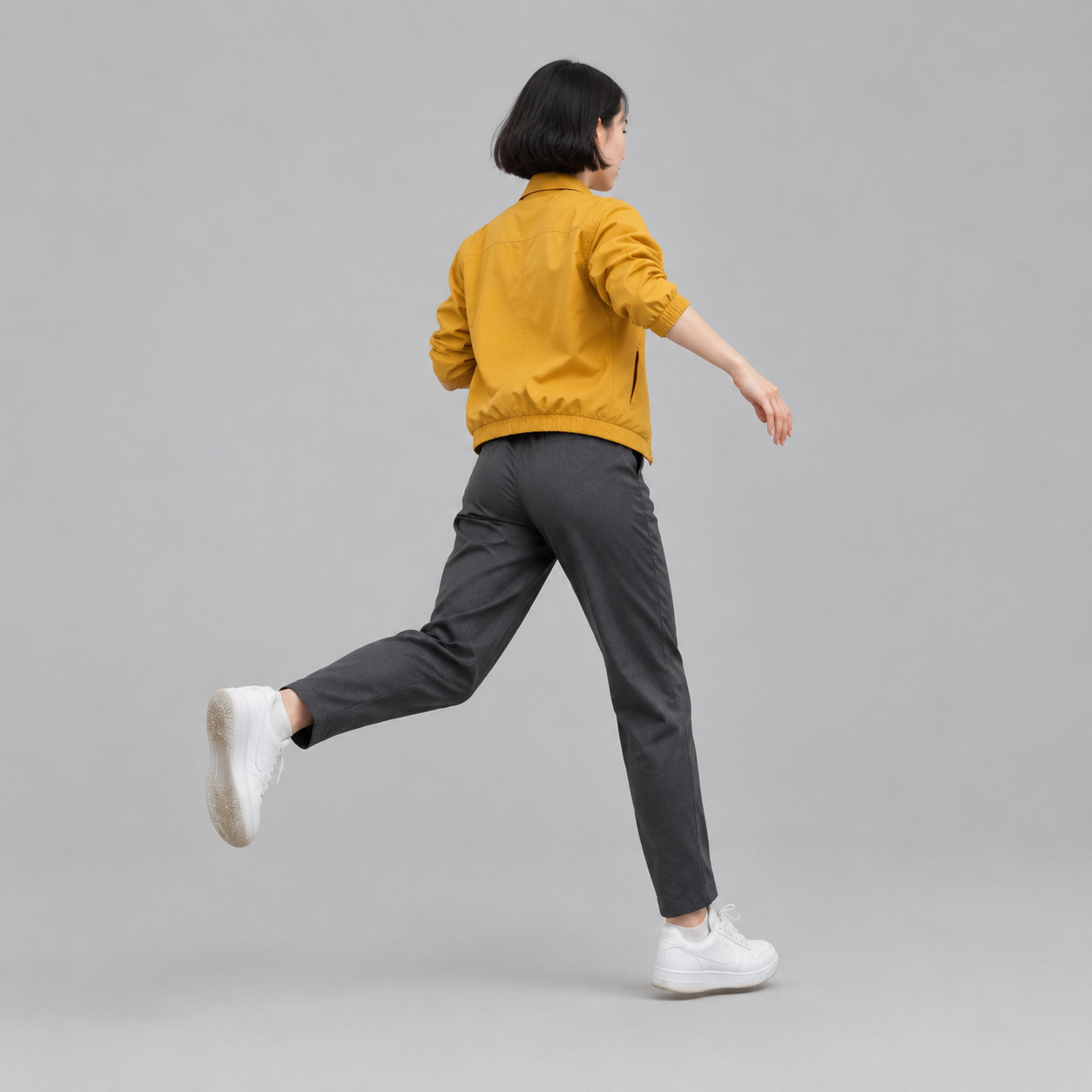
Compare the arm swing and leg placement
First attempts, without retouching. Pose, anatomy, and framing can differ from the reference. See more examples with people, animals and props →
Direct the scene
Work out the silhouette, limb placement, and camera angle before asking the image model to interpret your idea.
Explore the controlsDrag the body handles to adjust the head, torso and limbs. Connected body parts follow the movement as you shape the pose.
Drag empty space to orbit the scene and scroll to zoom. The captured camera view becomes part of the reference you send to image generation.
Send the visible characters, props and camera view to the image workspace. Editing handles stay out of the capture, leaving a clear reference for your prompt.
Try crossed arms, kneeling, or jogging presets in the editor. Refine them with the handles, use undo and redo, or reset the selected mannequin.
A useful starting point
A captured mannequin scene is a visual reference. The image model interprets it alongside your prompt, so a generated image may differ in anatomy, pose, camera angle, or placement.
Start with a readable silhouette and clear limb placement. Check hands, overlapping limbs, and body proportions in every result. Exact pose matching and identity preservation are not guaranteed.
AI Pose Generator FAQ
Seedance combines a manual 3D pose editor with reference-guided image generation. You pose the mannequin and choose the camera view, then attach a capture in the image workspace and describe the image you want. The image model interprets that reference when generating.
Yes. You can open the editor, adjust the mannequin and camera, and prepare a reference without submitting a generation request. Image generation is a separate action that requires sign-in and sufficient credits.
Yes. Add people and animals to the same scene, select each character to adjust its pose, and arrange props around them. Capture the composition as a shared reference. Browse the editable pose scenes for a starting point.
Exact matching is not guaranteed. The reference guides body pose and camera framing, but the model can reinterpret anatomy, overlaps, and placement. The mannequin also does not establish a person's identity. Refine the reference and prompt if the output misses your intention.
No. This workflow captures a rendered image of the 3D scene. It does not provide an OpenPose skeleton, keypoint file, or ControlNet pose map export.
Yes. Generate an image from your pose scene, then use the image result's video action to carry it into the image-to-video workspace as a reference. Describe the action and camera movement you want before generating the video.